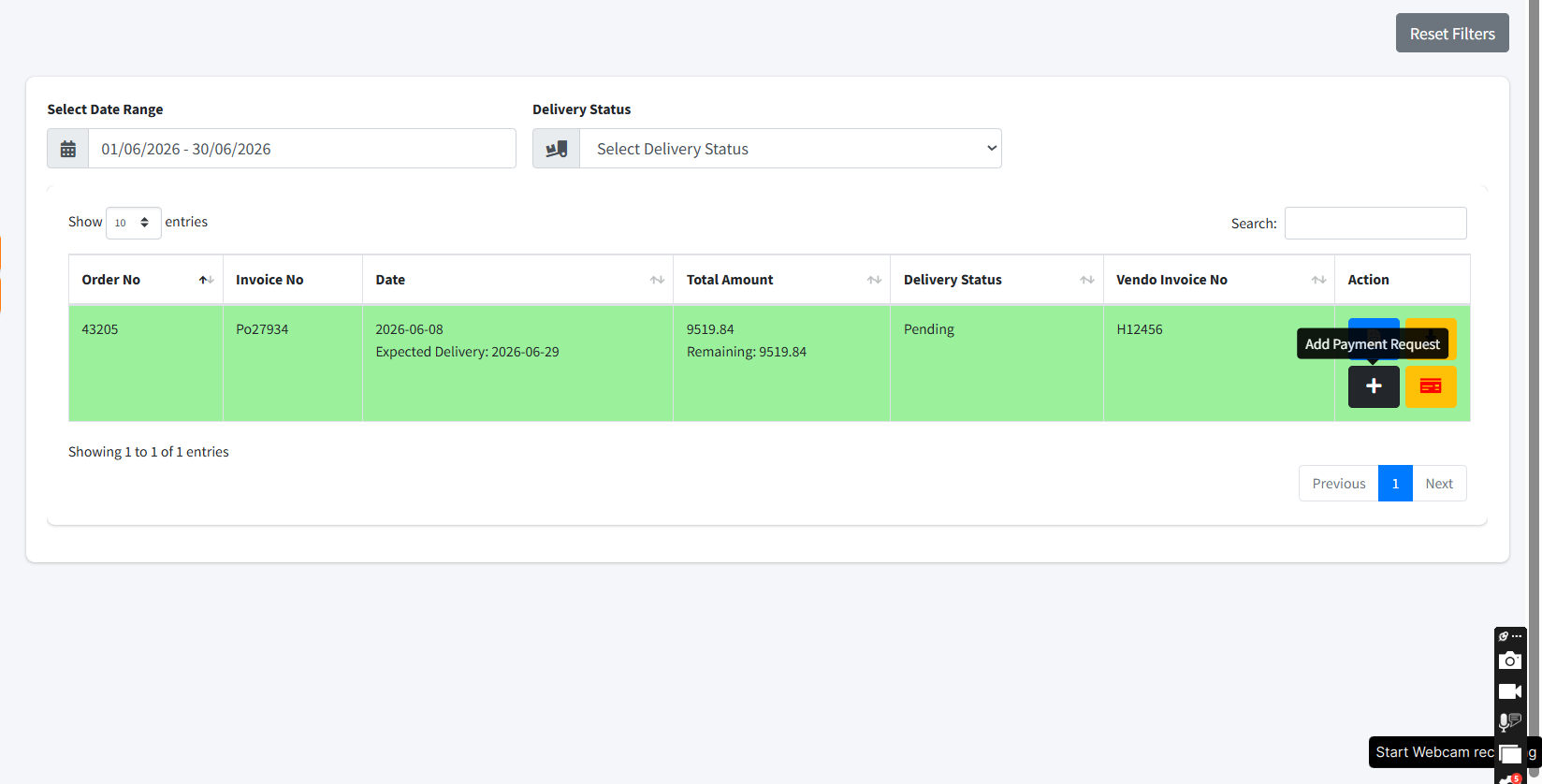
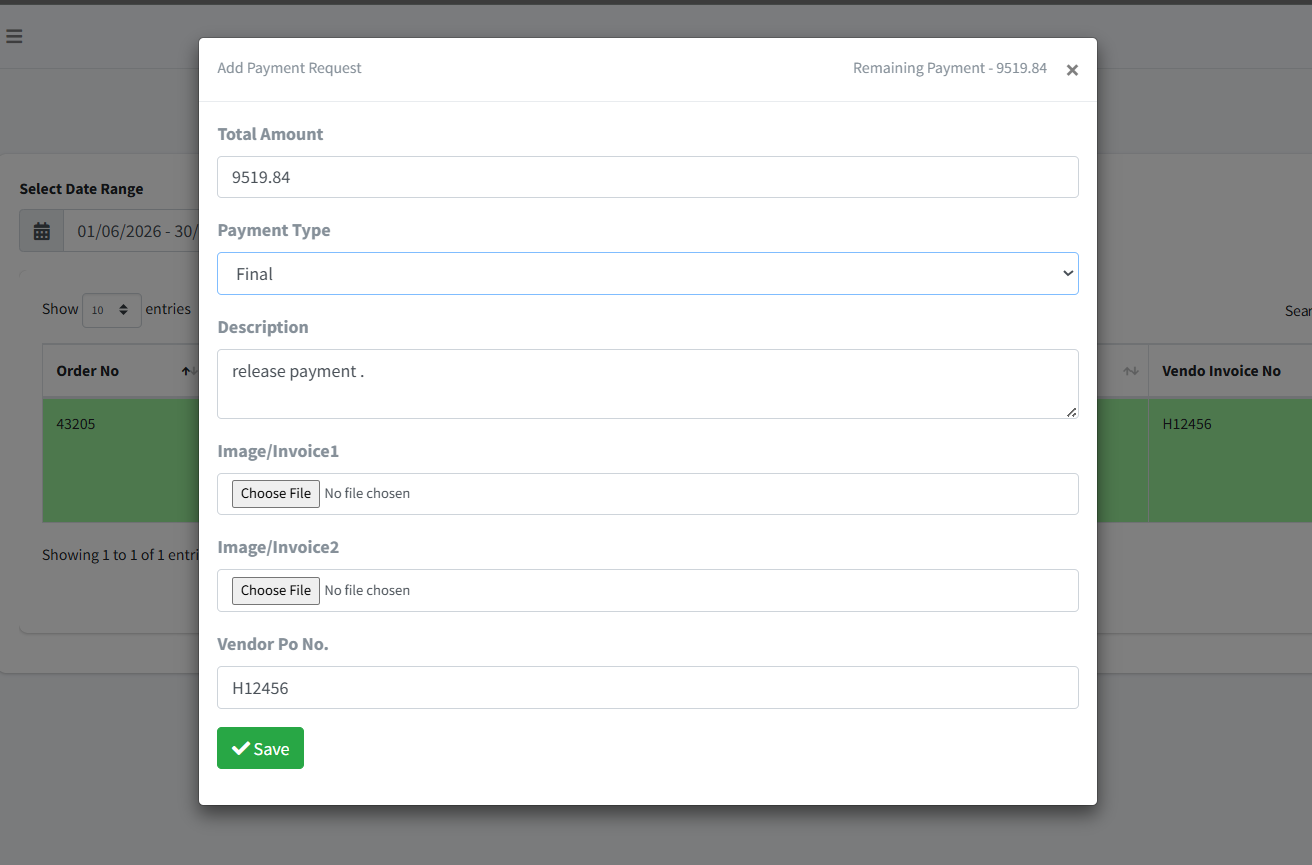
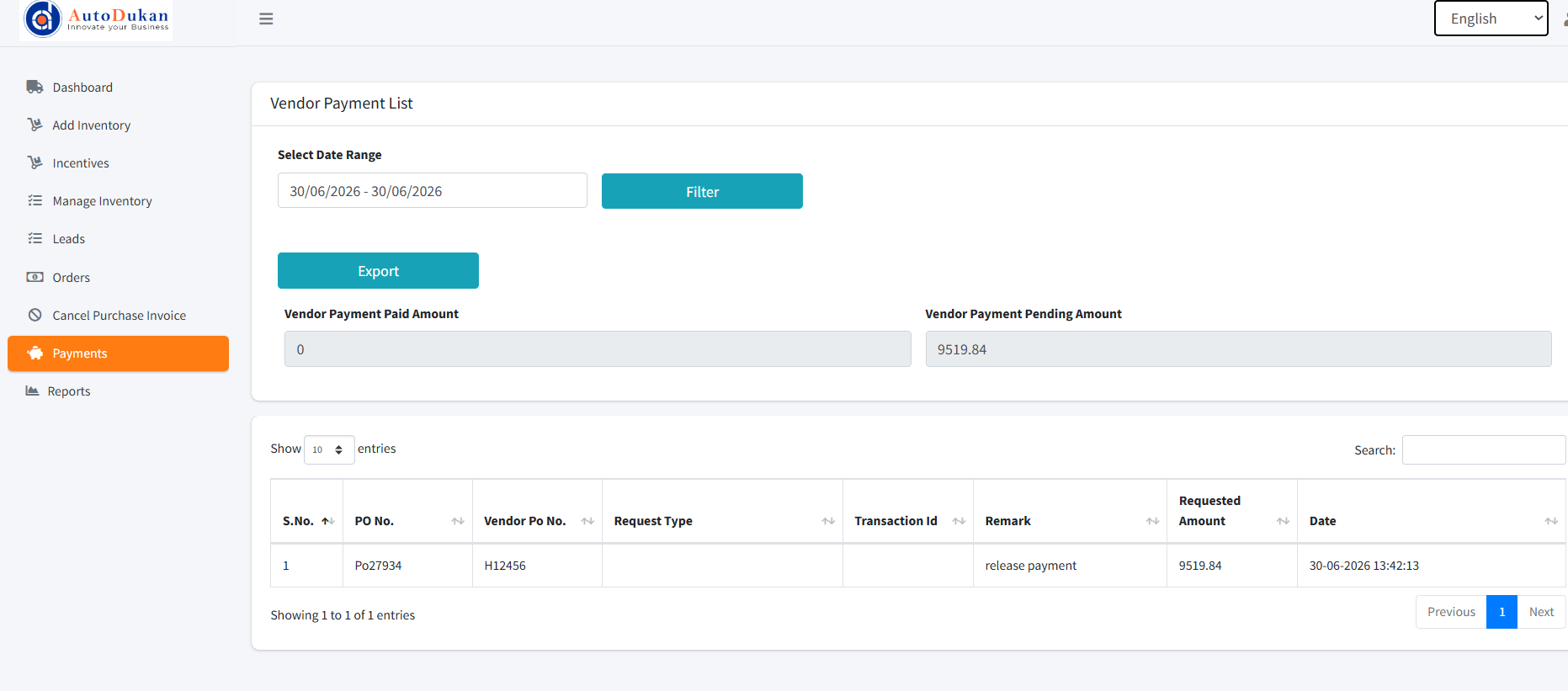
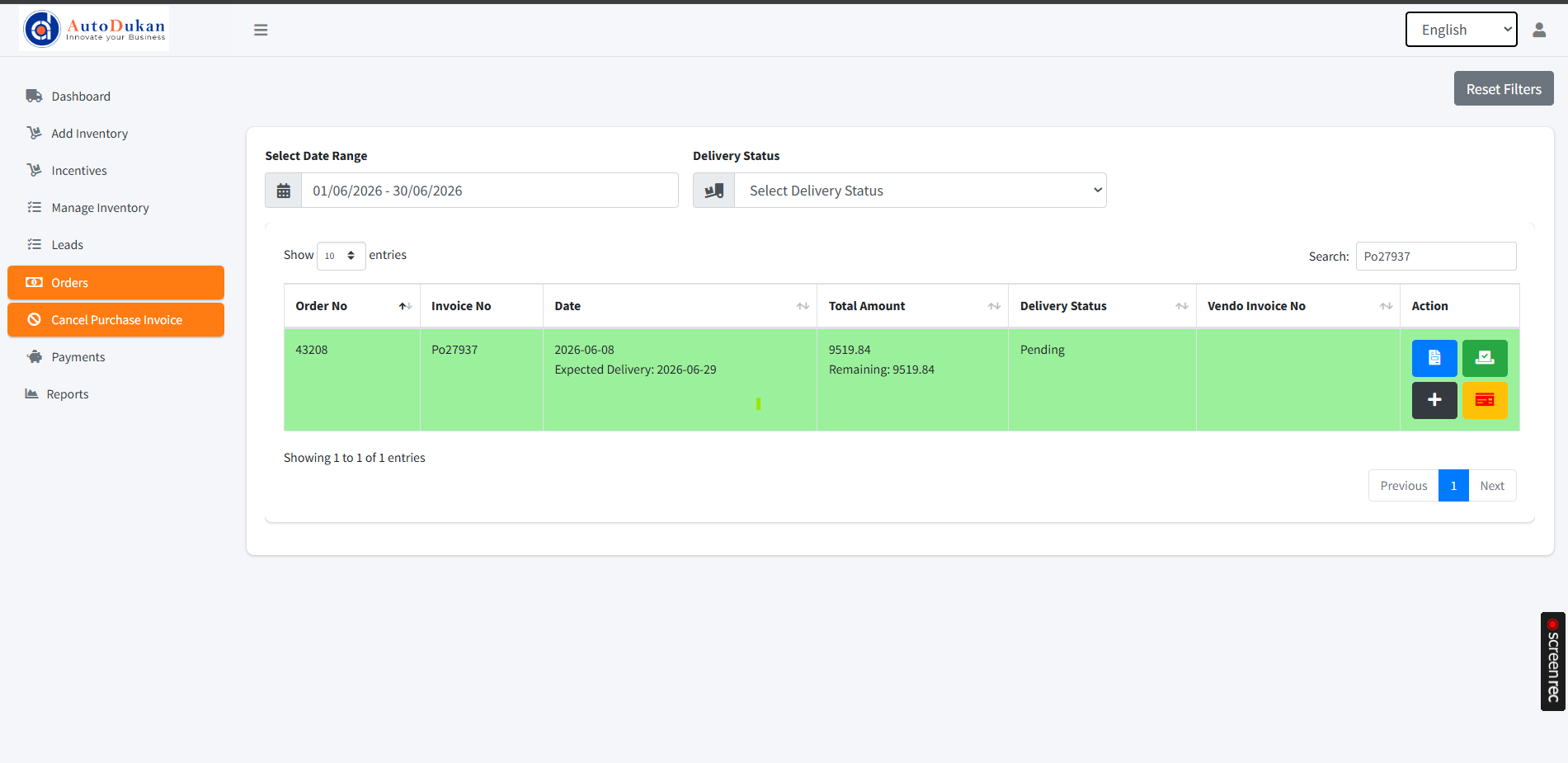
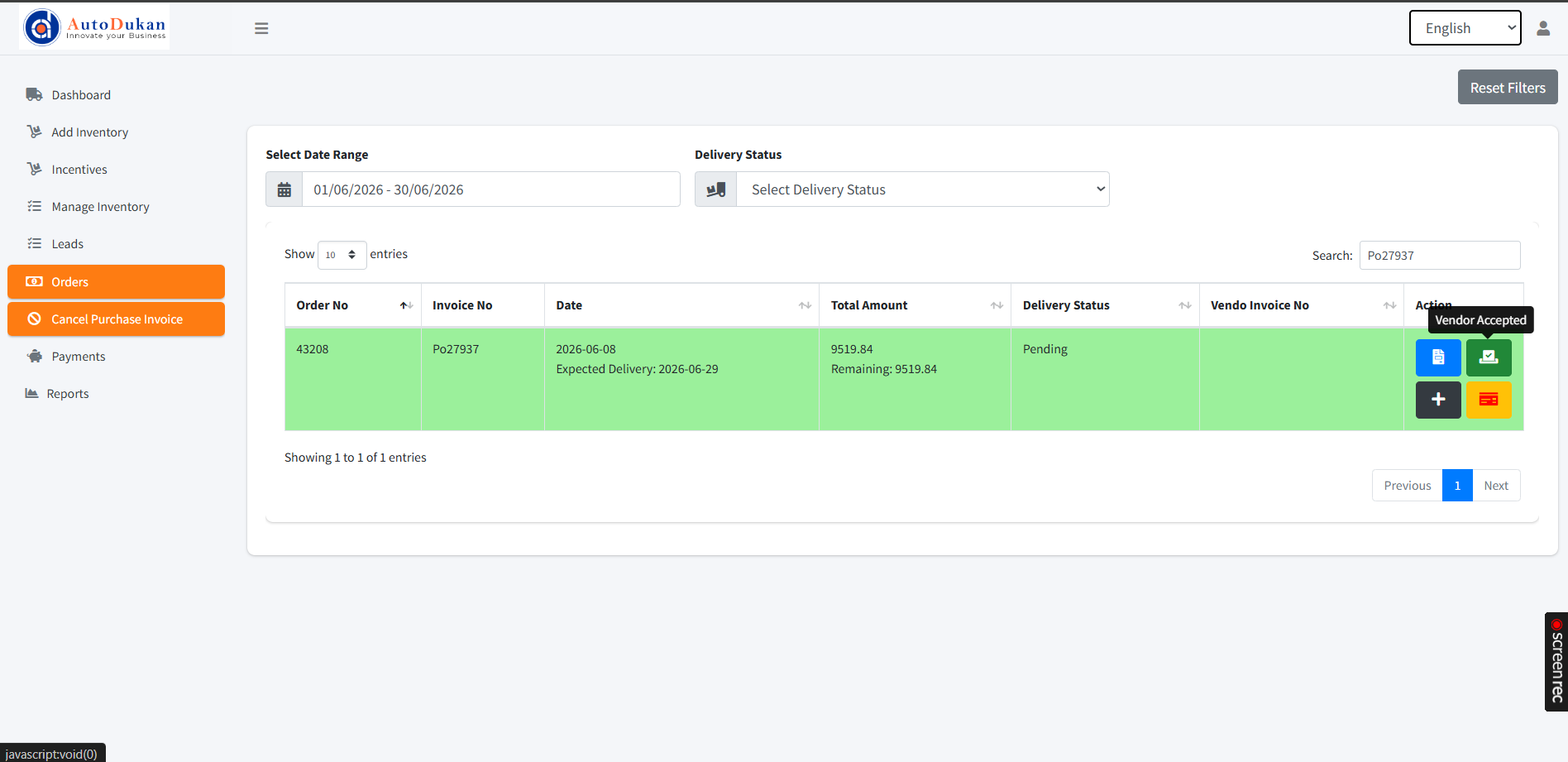
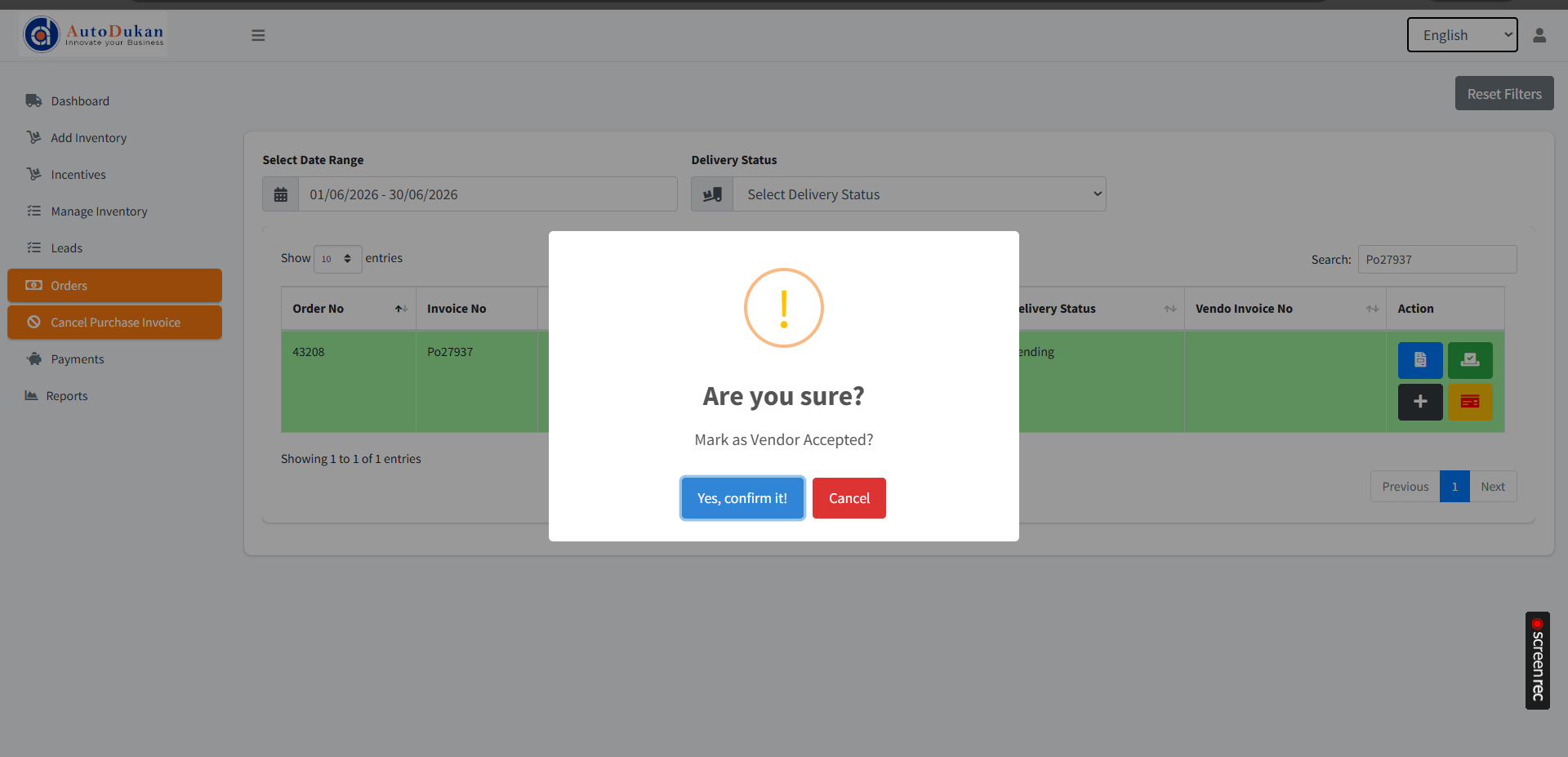
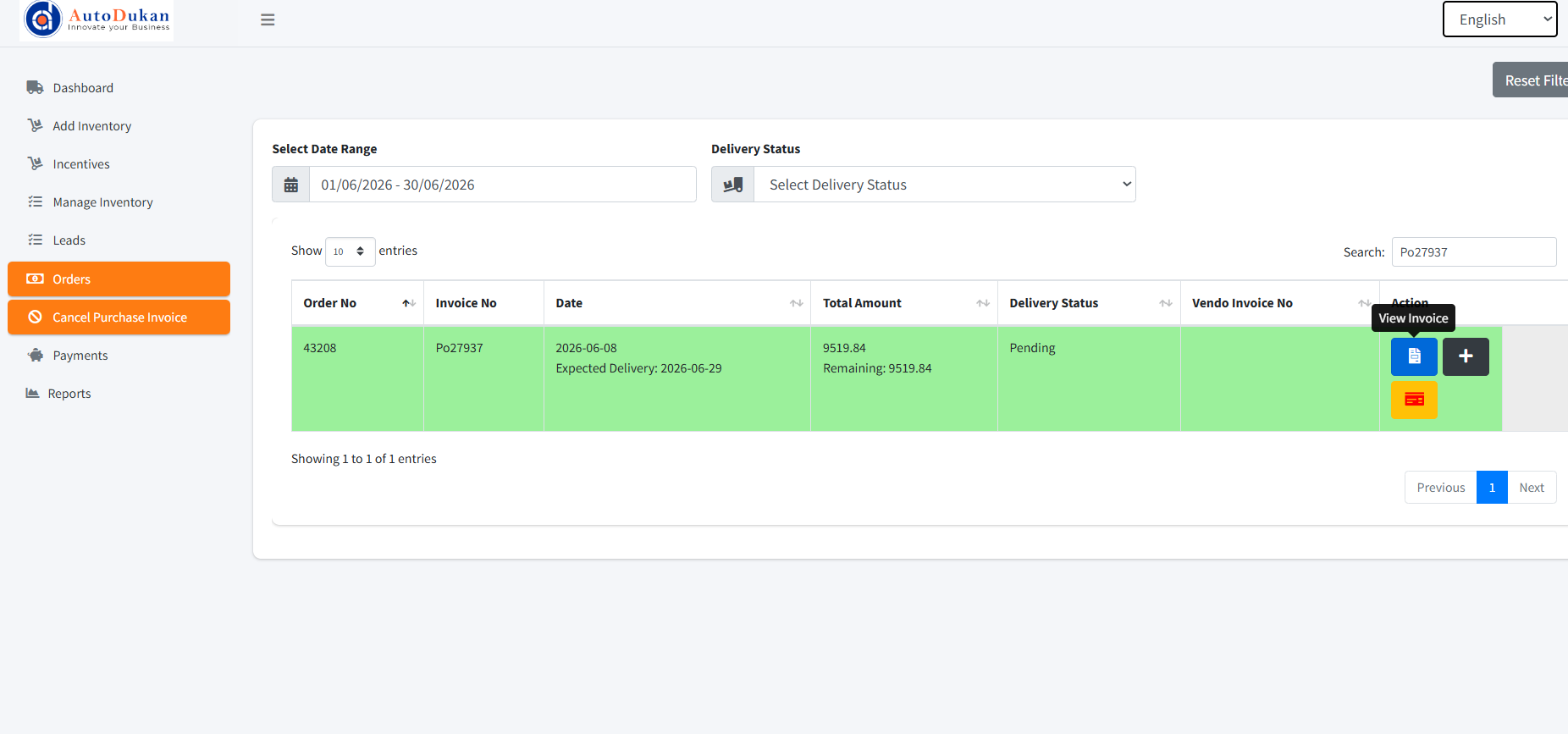
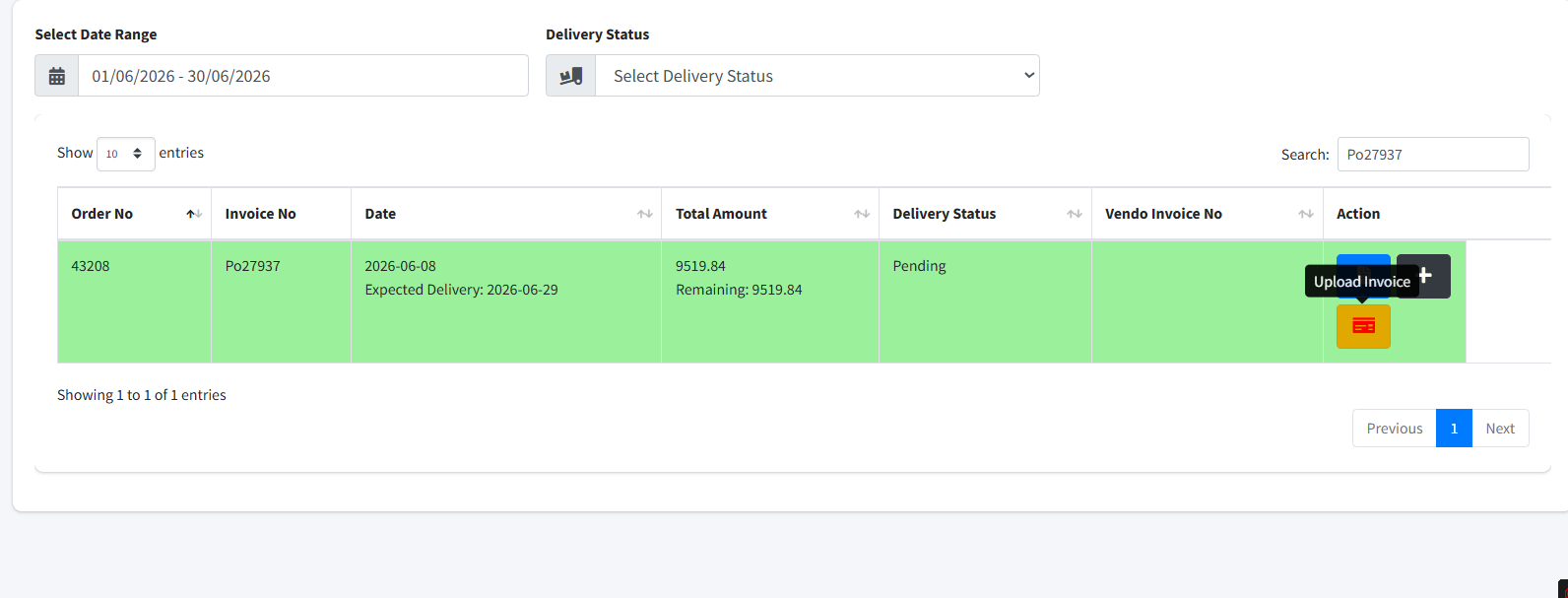
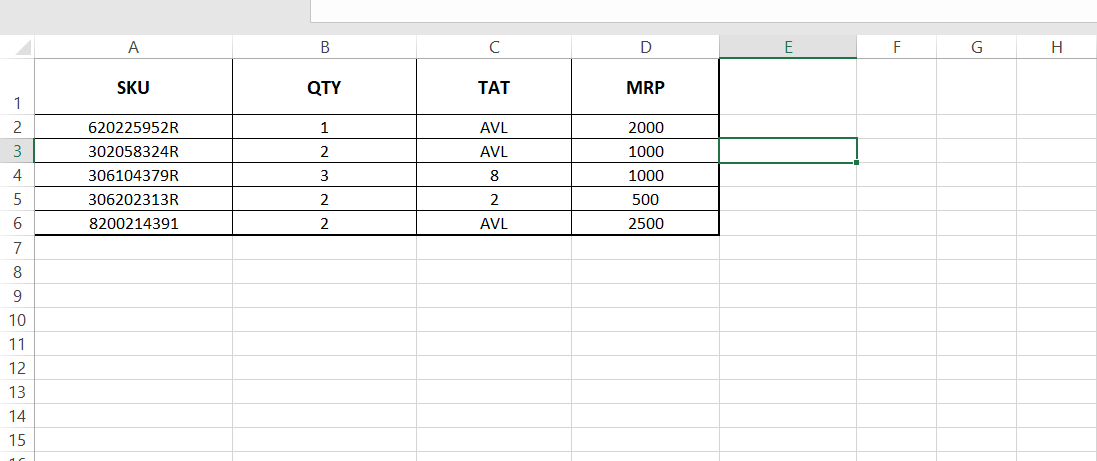
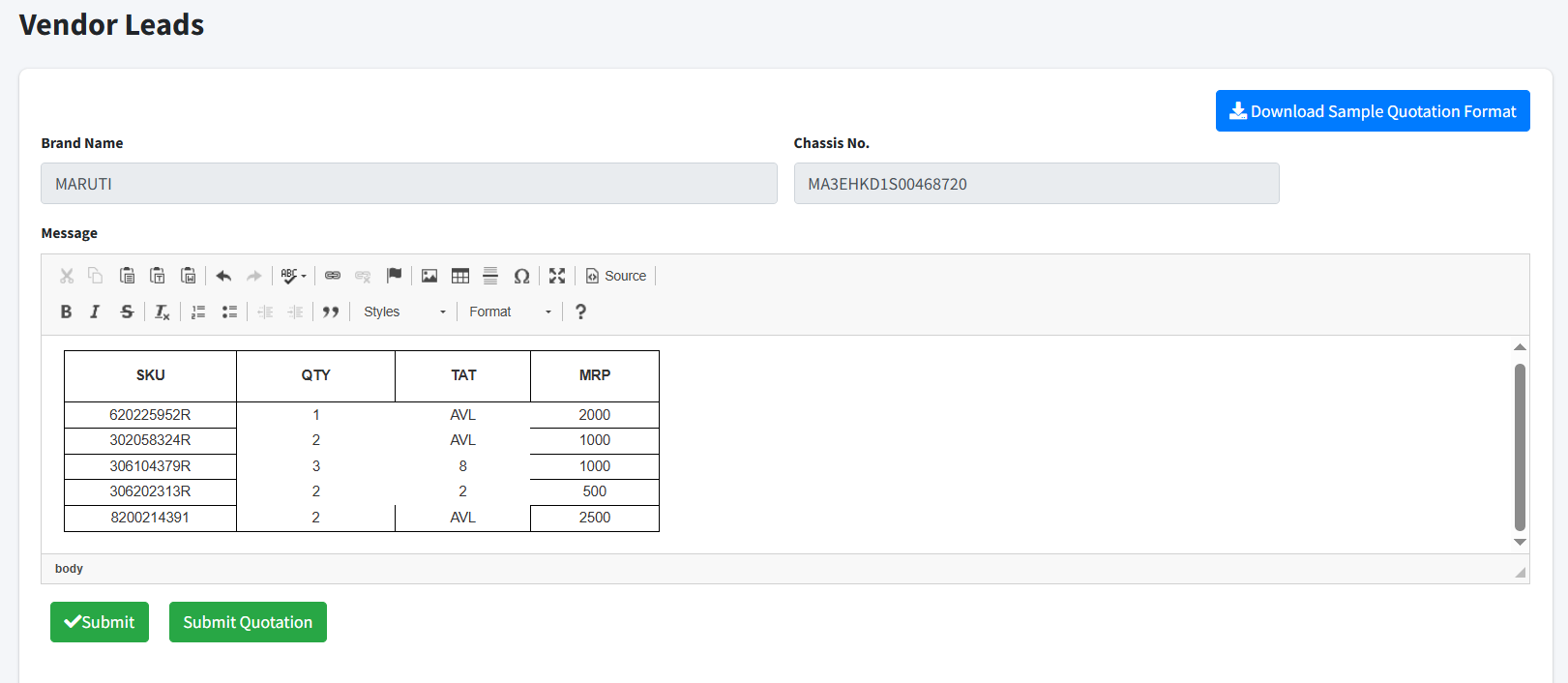
So there are 2 steps to dispatch the order
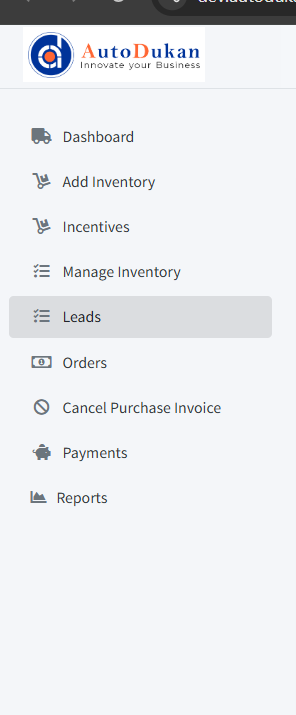
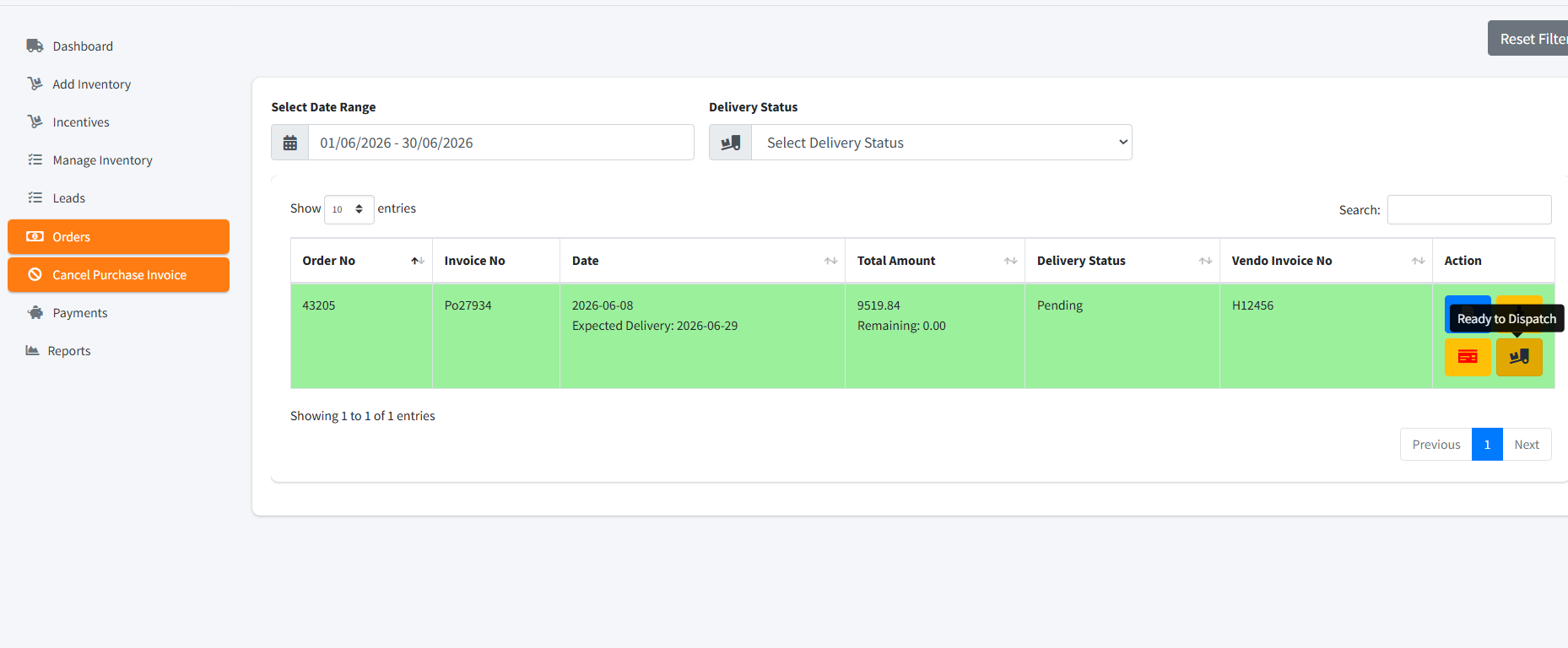
- Check the sidebar and click on “orders” and there in action section after the payment is done to you the button “Ready to Dispatch” will be shown to you click on it.
- After click on ready to dispatch button the dispatch section will open where you have to enter the number of boxes and loose parts the order has, so that logistic will be booked accordingly after you click on Submit button.
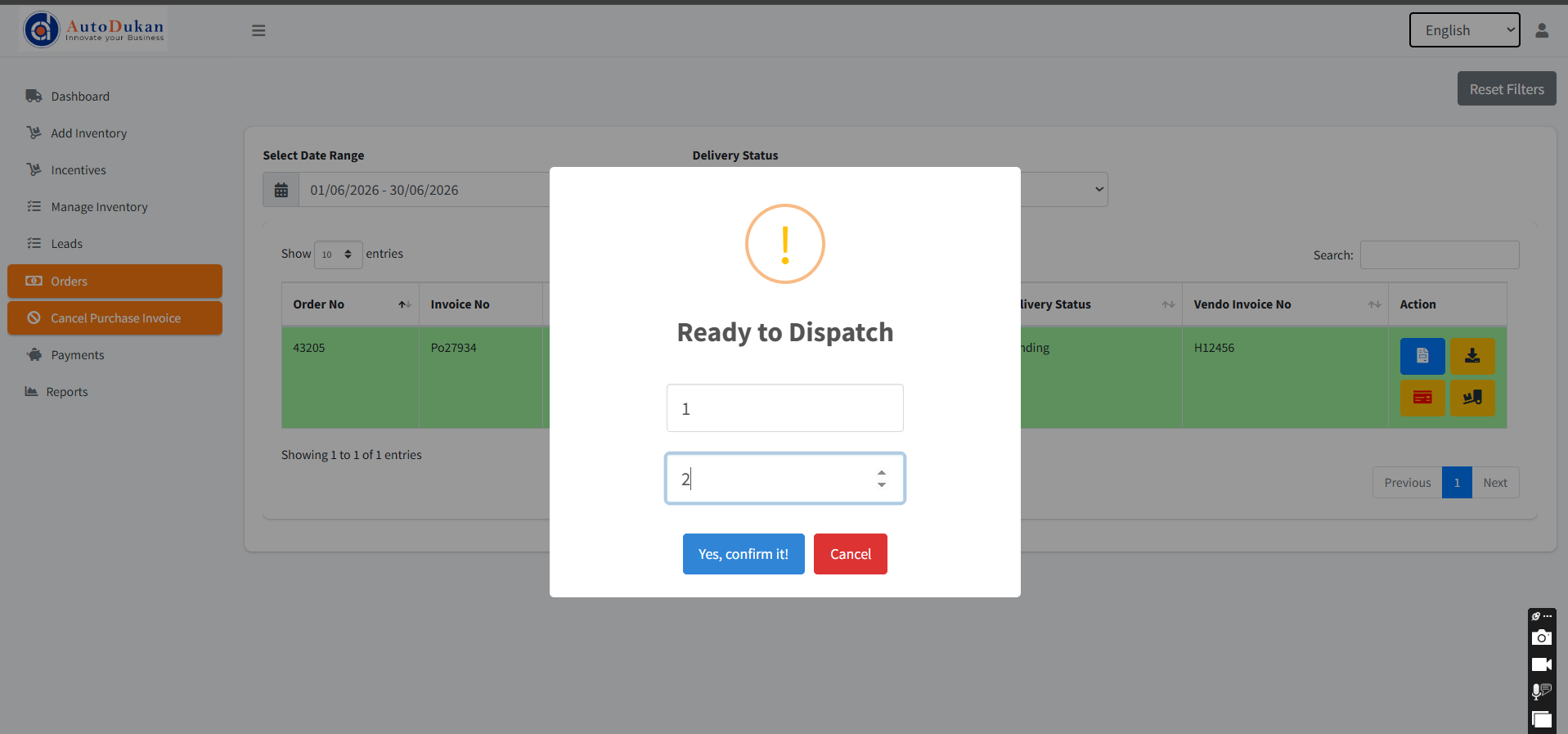
And with following the above steps you have assign your order successfully. for any doubt check the below video
So there are 2 steps you have to follow to upload inventory
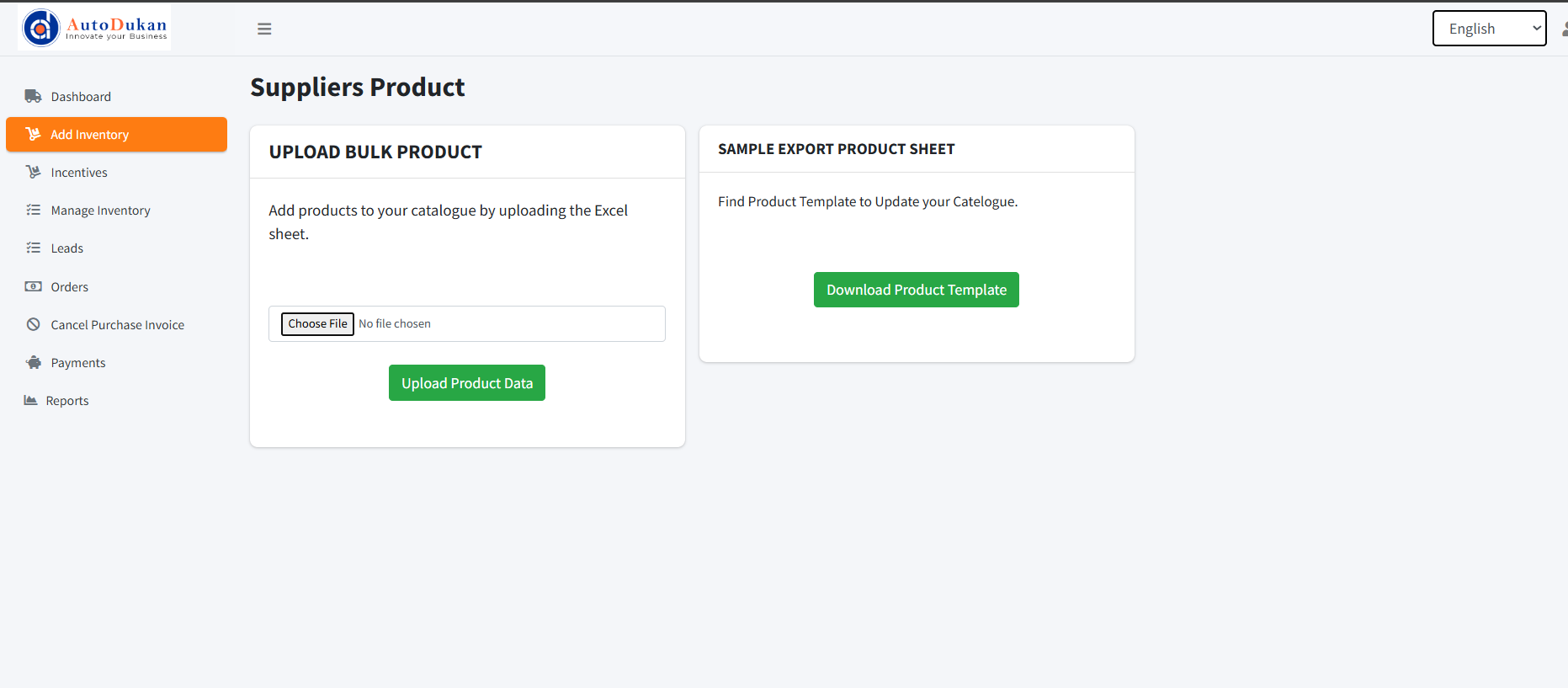
- Check the sidebar on left side and click on “Add inventory” and then click on “Download product template”
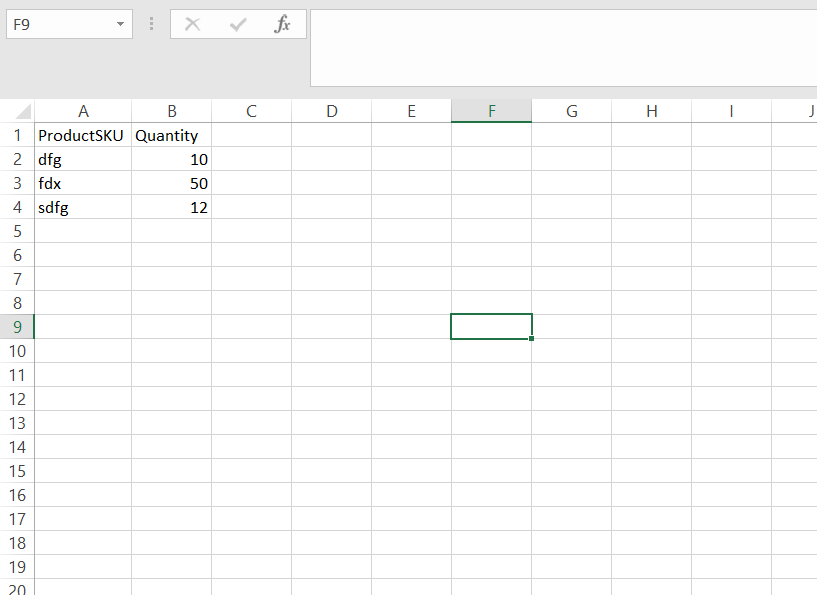
- Open the template and filled the required data in it ( sku and qyt) of your inventory and save the excel.
- Now upload the save excel inside of the upload bulk product section and click on the “Upload product data button“.
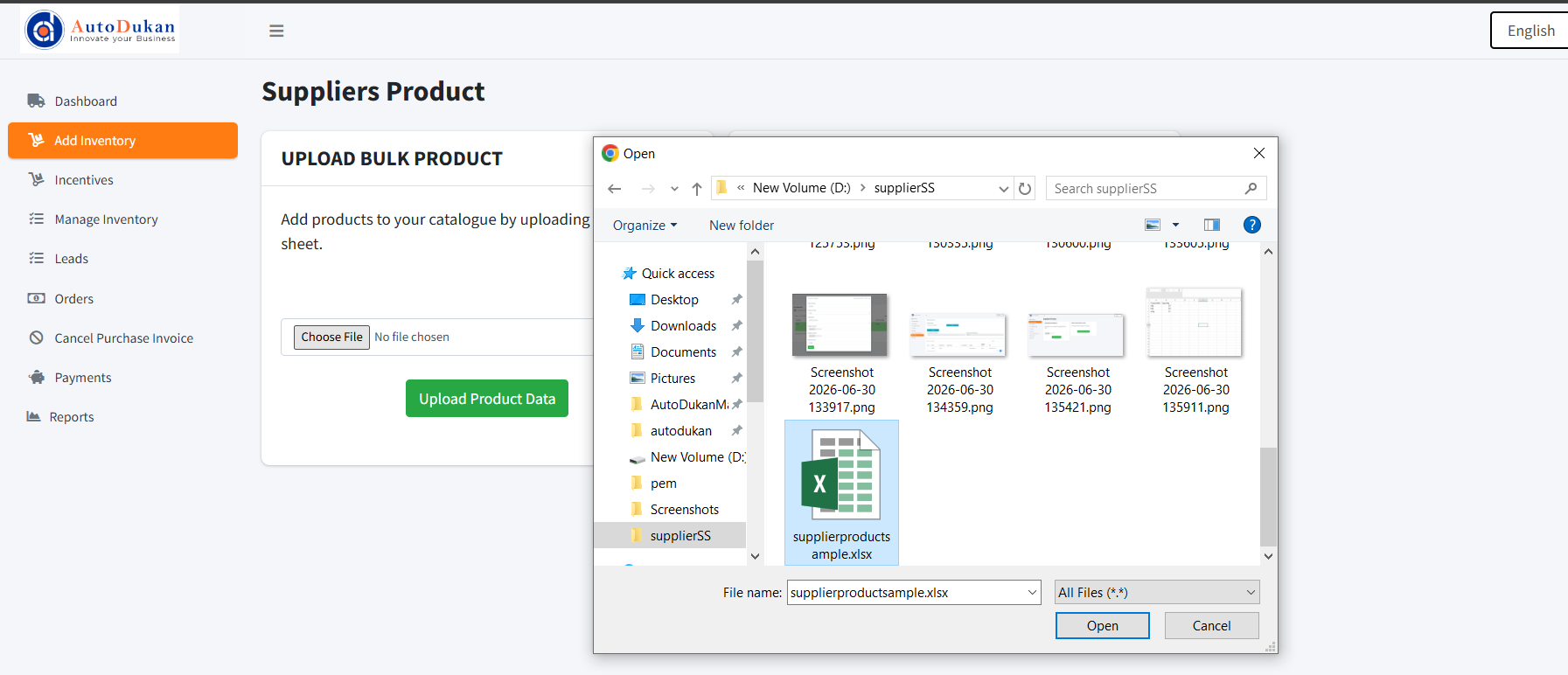
And with these step your inventory is uploaded make sure the format of excel is correct and it take maximum 30 min to upload the inventory and after 30 min you can upload it again if you want and if any doubt check the below video.